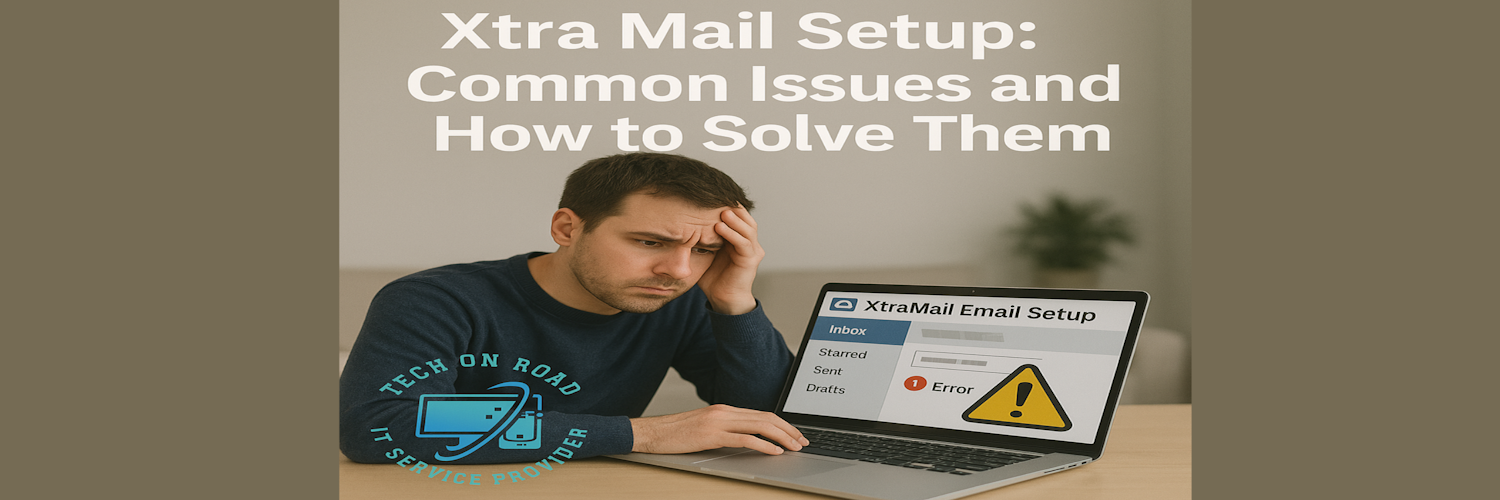
Xtra Mail Setup: Common Issues and How to Solve Them
Email remains at the heart of communication, especially in New Zealand, where Xtra Mail, provided by Spark NZ, continues to be a trusted platform for both personal and professional users. However, setting it up on various devices and platforms isn’t always seamless. Whether you’re configuring Xtra Mail for the first time or troubleshooting sync issues, a small misstep can lead to frustrating errors.
In this article, we’ll walk you through the most common Xtra Mail setup issues and explain how to solve them with confidence. Whether you’re using Outlook, Apple Mail, or your mobile device, this guide will help you resolve issues. When in doubt, Tech On Road is always ready to assist you with XtraMail setup issues at home or on-site.
Why Is Xtra Mail Setup Often Confusing?
Unlike cloud-only email services like Gmail, Xtra Mail operates on traditional email protocols like IMAP, SMTP, and POP3. These require accurate configuration of ports, authentication, and server addresses. Combine that with varying behaviors across devices and email clients, and it’s no surprise that setup becomes a headache for many users.
Common Xtra Mail Setup Issues and Their Solutions
Let’s break down the most frequent problems users face when setting up or using Xtra Mail—and how to fix them.
1. Incorrect Server Settings
The Problem: Most Xtra Mail setup failures stem from entering the wrong server details. A single typo in the server address or port number can prevent the app from connecting to Spark’s mail servers.
How to Fix It: Double-check that your incoming and outgoing settings match Spark’s latest Xtramail Outlook settings.
- IMAP (for syncing across multiple devices)
- Incoming Mail Server: imap.xtra.co.nz
- Port: 993
- Encryption: SSL/TLS
- SMTP (outgoing):
- Outgoing Mail Server: send.xtra.co.nz
- Port: 465
- Encryption: SSL/TLS
- Requires Authentication: Yes
Ensure your full Xtra Mail login credentials (email address and password) are entered correctly in both the incoming and outgoing sections.
2. Authentication Errors
The Problem: You’re entering the right password, but the system keeps rejecting your login credentials.
Likely Causes:
- Forgotten password or recent password reset.
- You’ve enabled two-step verification but didn’t generate an app-specific password.
- Spark account sync issues.
How to Fix It:
- Reset or test your password via the Xtra Mail Sign In support page, or contact Spark Xtra Mail support
- If two-step verification is on, generate an app password through Spark’s security settings for third-party apps like Outlook or Apple Mail.
- Always ensure authentication is enabled for both incoming and outgoing servers.
3. Emails Not Syncing Across Devices
The Problem: You read or delete an email on one device, but it still shows up on another. Or worse, some emails don’t appear at all.
The Fix:
- Ensure you’re using IMAP, not POP3. IMAP keeps emails in sync across all devices.
- If you’re stuck on POP3, you may need to remove the account and add it again using IMAP.
- In your email client, check that “Leave messages on server” is disabled (for POP3) or that folders are correctly subscribed (for IMAP).
4. Unable to Send Emails (SMTP Issues)
The Problem: You can receive emails just fine, but sending results in an error, such as “Cannot connect to server” or “Message not sent.”
Common Causes:
- SMTP server misconfiguration.
- The internet provider is blocking port 25 (common with older setups).
- SMTP authentication turned off.
How to Fix It:
- Use port 465 with SSL/TLS enabled.
- Ensure authentication is turned on for outgoing mail.
- Avoid port 25, as it’s commonly blocked to prevent spam.
5. Xtra Mail Not Working on Mobile Devices
The Problem:
Your Android or iPhone won’t send or receive emails, even with the correct settings.
How to Solve It:
- Use the Mail app’s “Manual Setup” instead of automatic detection.
- Double-check server settings (see Xtramail Outlook settings above).
- Ensure your mobile device is connected to the internet and that no firewall or antivirus app is blocking ports.
- Try deleting and re-adding the email account.
6. Outlook and Xtra Mail Compatibility Issues
The Problem: Outlook keeps prompting for a password, or you’re seeing errors like “Server not responding.”
Root Cause: Outlook’s older versions may not support modern encryption defaults, or your Xtra Mail requires OAuth-based login (which Outlook doesn’t support natively for all providers).
Solution:
- Update to the latest version of Outlook.
- Use app-specific passwords.
- Check Outlook account settings to ensure SSL is enabled, and ports comply with the Spark Xtra Mail settings.
7. Account Locked or Hacked
The Problem: You can’t log in, or your contacts are receiving spam from your account.
Steps to Take:
- Immediately reset your Spark Xtra Mail login password.
- Enable two-step verification for added protection.
- Scan your device for malware (especially if you’ve clicked suspicious links).
- Notify Spark Support to secure the account.
Xtra Mail Settings – Tips for a Smooth Mailing Experience

Here are some extra best practices that can save time and prevent issues:
1. Choose the Right Protocol (IMAP vs POP3)
- Always go with IMAP if you access email on multiple devices.
- Use POP3 only if you want to download and store emails on one device permanently.
2. Update Your Email Client
- Use the latest version of email clients like Outlook, Thunderbird, or Apple Mail. Older versions may not support modern security protocols.
3. Enable Two-Step Verification
- Adds a critical layer of security, especially if you use your email for sensitive or business-related communication.
4. Backup Your Emails Regularly
- Use your email client’s export or archive feature to create regular backups, especially for business accounts.
Xtramail Setup Doesn’t Have to Be a Struggle: Call Experts
Sometimes, even when you follow all the right steps, the Spark Xtra Mail setup still doesn’t work. This is especially true for older laptops, custom devices, or business users with domain-based setups.
That’s where Tech On Road steps in.
With extensive experience in setting up and troubleshooting Xtra Mail across all devices and platforms, Tech On Road offers on-demand, at-home, and onsite support across Wellington, Masterton, Upper Hutt, Lower Hutt, and nearby regions of Wellington.
Whether you’re a personal user confused by server errors or a business needing bulk email setup and sync, we can help:
- Complete Xtra Mail setup on all your devices
- Migration from POP3 to XtraMail IMAP settings without data loss
- Securing your account after suspicious activity
- Troubleshooting access to XtraWebmail and client sync problems
- On-site or remote support tailored to your needs
Setting up Xtra Mail correctly is crucial for smooth communication, but the process is often more technical than it seems. However, you don’t have to struggle with Xtra Mail Sign In issues, configuration errors, or XtraMail Outlook settings on your own. With expert knowledge and trusted support from Tech On Road, your XtraWebmail experience can be smooth, secure, and hassle-free.