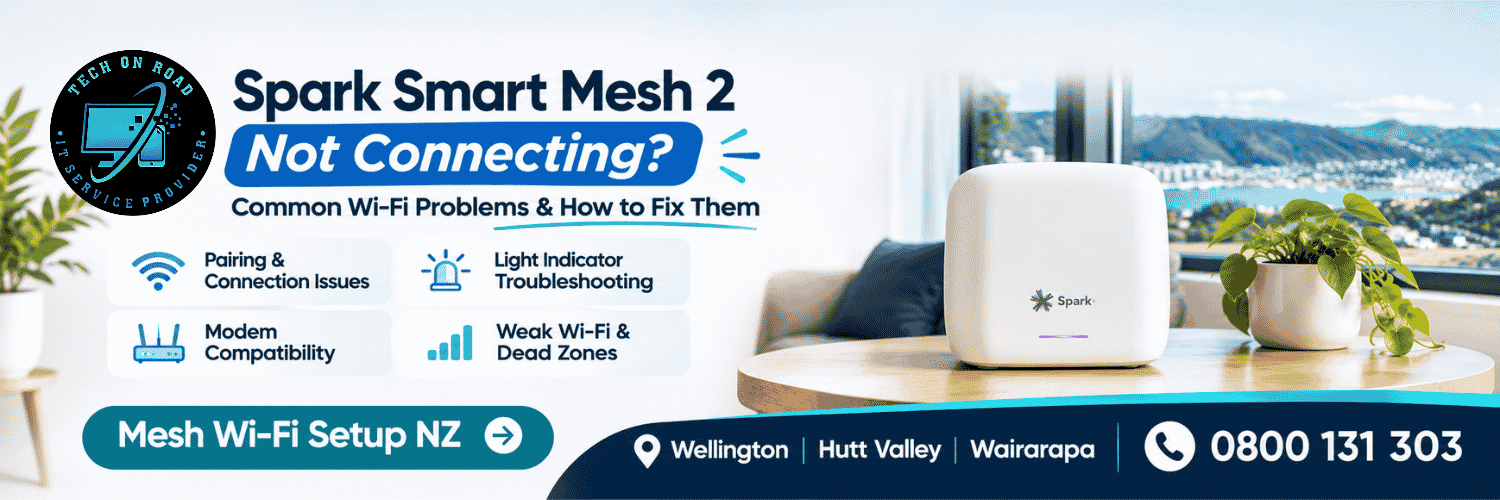
Spark Smart Mesh 2 Not Connecting? Common Problems and How to Fix Them
A mesh Wi-Fi system should extend your internet coverage without making your network more complicated. However, pairing failures, incompatible modem configurations and poor signal distribution can prevent your Spark Smart Mesh 2 from functioning correctly.
If you are experiencing issues with your Spark Smart Mesh 2 not connecting, identifying where the connection breaks down is essential before changing network settings or replacing equipment.
Understanding these problems can also help you determine whether you need professional Internet setup & Support Services in NZ. This guide explains product-specific connection problems, their underlying causes and practical troubleshooting methods based on Spark’s official device instructions.
Why Is Your Spark Smart Mesh 2 Not Connecting to Your Modem?
Connection problems often originate from the relationship between the modem and the mesh unit rather than a hardware defect. Unlike conventional Wi-Fi extenders, the Smart Mesh 2 requires a particular configuration depending on the modem model and how the existing wireless network operates.
Understanding Spark Smart Modem compatibility
Spark supports different installation configurations depending on your modem.
|
Modem model |
Min Mesh Units Required | Connection configuration |
|
Spark Futura Modem |
1 | Integrated mesh network |
|
Spark Smart Modem 3 |
1 | Integrated mesh network |
|
Spark Smart Modem 2 |
1 | Integrated mesh network |
|
Spark 5G Smart Modem |
1 |
Integrated mesh network |
| Nokia FastMile 5G Gateway 7 | 2 |
Separate mesh network |
| Original Spark Smart Modem | 2 |
Separate mesh network |
| Huawei B618s / HG659b | 2 |
Separate mesh network |
| Non-Spark modems | 2 |
Separate mesh network |
With the separate network configuration, the primary mesh unit must remain connected to the modem through an Ethernet cable.
Using the wrong configuration could be the reason behind Spark Smart Mesh 2 not connecting despite having a fully functional broadband connection.
Checking the existing broadband connection
Before beginning your Spark Smart Mesh 2 setup, connect a smartphone or laptop directly to the modem’s Wi-Fi and open several websites.
If internet access is unavailable at the modem itself, introducing a mesh unit will not resolve the underlying broadband fault. Establish a working internet connection before investigating the mesh network.
What Causes Pairing Failures During Installation?
Spark Smart Mesh pairing problems can occur when the modem and mesh unit cannot establish their initial connection. The appropriate troubleshooting method depends on whether you are connecting wirelessly or using a network cable.
When wireless pairing fails
A WPS pairing failure does not necessarily indicate defective equipment. Wireless pairing depends on modem settings, signal availability and correctly timed button activation.
For compatible integrated mesh modems:
- Confirm that WPS is enabled in the modem settings.
- Position the mesh unit within the modem’s wireless coverage.
- Allow the unit to reach its flashing red status.
- Activate the modem’s WPS button, followed by the mesh button within 60 seconds.
- Allow approximately two minutes for the connection to be established.
If your Spark Smart Mesh 2 is not connecting after this process, temporarily move it closer to the modem before repeating the procedure.
When a wired connection is more reliable
Ethernet pairing provides an alternative when wireless synchronisation repeatedly fails.
Connect the mesh unit to a compatible modem using the supplied network cable. Allow the connection to initialise until the status indicator becomes solid white.
For an integrated network, the mesh unit can subsequently operate wirelessly in another location. However, with an older or third-party modem, the primary unit needs to retain its wired connection.
Refer to the official Spark Smart Mesh 2 installation instructions for the configuration applicable to your equipment.
What Do the Spark Smart Mesh 2 Light Colours Mean?
The Smart Mesh 2 indicator lights provide useful diagnostic information about the unit’s connection status. Interpreting them correctly helps distinguish an incomplete installation from inadequate wireless coverage.
|
Light indicator |
Meaning |
Recommended action |
|
Solid white |
Reliable network connection |
Check internet performance on connected devices. |
|
Flashing red during setup |
Unit is ready for wireless pairing |
Initiate the appropriate WPS procedure. |
|
Red after setup |
Insufficient wireless signal |
Reposition the unit nearer a connected network point. |
|
No light after setup |
Wireless signal unavailable, assuming the unit has power |
Check the power supply and reposition the unit. |
If the Spark Smart Mesh 2 is not connecting and displays red after relocation, the original pairing may still be valid. The problem could instead be the distance or physical obstruction between network points.
Avoid applying light indicator instructions intended for the original Spark Smart Mesh, as its status colours differ from the second-generation model.
Why Are Your Devices Unable to Connect After Successful Pairing?
A solid white indicator confirms a reliable mesh connection, but it does not guarantee that every device is using the correct wireless network.
When investigating a Spark Smart Mesh not working as expected, distinguish between a network-wide fault and a problem affecting an individual device.
Devices are connecting to the wrong network
if Spark Smart Mesh 2 Not Connecting, Troubleshooting Guide Integrated mesh configurations retain the modem’s existing wireless network credentials. Separate configurations use the primary mesh unit’s network details.
If both the modem and standalone mesh system broadcast wireless networks, devices may reconnect to the original modem rather than benefit from extended coverage.
Spark recommends considering disabling the modem’s wireless function for separate mesh configurations. Do not apply this change indiscriminately to integrated networks.
Only one device experiences connection problems
If your Spark Smart Mesh 2 is not connecting to a particular smartphone, laptop or smart television, investigate the device independently.
Forget its saved wireless network, restart the device, and reconnect using the correct credentials. Check whether available operating system or network driver updates address connectivity problems.
When other devices remain connected, resetting the entire mesh system is unlikely to be the most appropriate first response.
Why Does Wi-Fi Remain Weak After Installing Smart Mesh 2?
Successful pairing does not automatically eliminate wireless dead zones. Effective Spark broadband Wi-Fi coverage depends on the quality of communication between network points and the physical characteristics of the property.
The mesh unit is positioned inside a dead zone
Effective mesh Wi-Fi node placement requires installing the unit somewhere that still receives a reliable network signal.
For example, in a two-storey Wellington home, placing the mesh unit inside an upstairs bedroom with almost no existing reception may produce worse results than positioning it near the staircase or landing.
Keep the unit elevated, unobstructed, and away from large metallic objects.
Building materials are restricting signal distribution
Concrete walls, metal insulation, multiple floors, and large appliances can weaken communication between mesh units.
If your Spark Smart Mesh 2 is not connecting reliably after changing rooms, test several intermediate positions before purchasing additional equipment.
The objective is to establish reliable communication between network points, not simply position equipment where internet access is weakest.
Internet speed and wireless coverage are different problems
Mesh networking distributes existing internet connectivity; it does not increase the broadband capacity supplied by your provider.
Compare internet speeds near the modem and mesh unit using the Spark broadband speed test guidance.
Poor performance in both locations suggests a broader connectivity issue, while deterioration only near the mesh unit warrants further local network investigation.
When Do Persistent Connection Problems Require Further Investigation?
Effective Spark Smart Mesh troubleshooting should prioritise reversible changes before factory resets or equipment replacement.
If your Spark Smart Mesh 2 is not connecting despite correct installation and positioning, investigate the following:
- Power interruptions: Restart the modem, wait for broadband connectivity to return, then restart the mesh unit.
- Software compatibility: Consult Spark about available mesh firmware updates rather than installing unofficial software.
- Network configuration: Check whether recent modem replacements, password changes, or additional networking equipment have affected connectivity.
At Tech On Road, we provide on-site IT services for internet and mesh networks in NZ, covering Wellington, Hutt Valley, Wairarapa and surrounding suburbs. When diagnosing persistent Spark mesh connection issues, we assess modem configuration, wireless signal distribution and individual device connectivity before recommending additional equipment.
Contact Spark for suspected broadband faults, product-specific reset instructions or possible warranty-related hardware failures.
Restore Reliable Wi-Fi by Identifying the Actual Connection Fault
Resolving problems with your Spark Smart Mesh 2 not connecting requires understanding whether the fault originates from compatibility, pairing, wireless signal strength or individual device configuration.
A red indicator after relocation requires a different approach from unsuccessful initial pairing. Likewise, slow internet despite a healthy mesh connection may indicate limitations elsewhere in the network.
Before replacing equipment or resetting your entire system, consider when the problem began and which devices or rooms are affected. Work through the relevant diagnostic steps systematically, and seek professional network assistance when the underlying cause remains unclear.