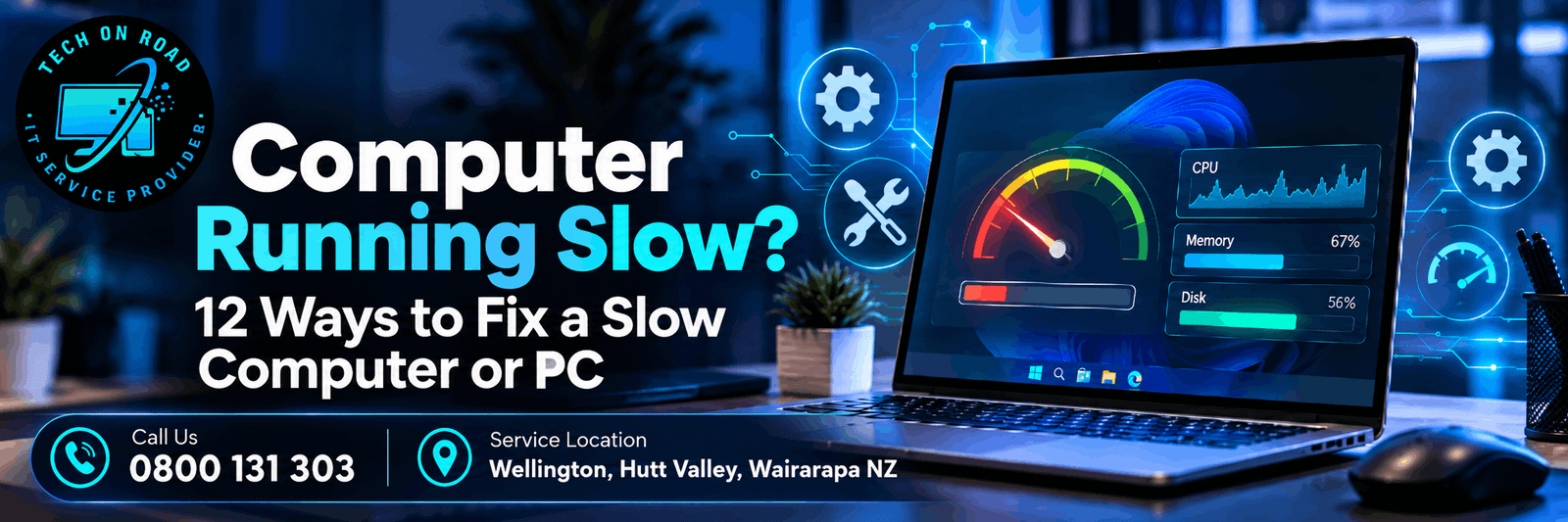
Computer Running Slow? 12 Ways to Fix a Slow Computer or PC
If your computer is running slow, common causes include too many startup programs, insufficient RAM, low storage space, malware, background processes, overheating, outdated software or a slow or failing storage drive.
For home users and businesses in New Zealand, especially across Wellington, Hutt Valley, Wairarapa and Tararua, a slow PC or laptop can quickly become a productivity problem. Before replacing the computer or randomly changing settings, it is better to find out what is actually causing the slowdown.
On most Windows computers, you can start by pressing Ctrl + Shift + Esc to open Task Manager. Check whether CPU, Memory or Disk usage remains unusually high. This can quickly point you towards the source of the problem.
This guide explains how to diagnose a slow PC or laptop and walks through 12 practical fixes and scenarios when you must call professional computer repair services.
Why Is Your Computer Running Slow? Check These Symptoms First
| Symptom | Likely cause | Check first |
| Slow immediately after startup | Too many startup apps | Startup Apps |
| Slow with several programs open | Low available RAM | Memory usage |
| Takes a long time to boot | Startup apps or old HDD | Startup Apps and drive type |
| Suddenly became slow | Update, malware or background process | Task Manager |
| Disk repeatedly reaches 100% | Storage bottleneck or drive issue | Disk usage and drive health |
| Browser is slow but the PC is otherwise fine | Tabs or extensions | Browser tabs and extensions |
| Fan runs loudly and performance drops | Overheating | CPU usage and ventilation |
| Freezes while opening files | HDD/SSD problem | Drive health |
If Task Manager shows one application using unusually high CPU, Memory or Disk resources, start there. Avoid ending unfamiliar Windows system processes unless you know what they do.
Now work through the fixes below.
12 Ways to Fix a Slow Computer
1. Restart Your Computer
If your computer is running slow because of temporary background processes or pending updates, restarting is one of the quickest fixes to try.
If a computer has been running for days or weeks, background processes can accumulate, applications may fail to release memory correctly, and pending updates may require a restart.
Save your work and restart Windows rather than simply closing the laptop lid.
After restarting, check whether performance improves before making further changes.
2. Disable Unnecessary Startup Apps
One of the most common reasons for a computer running slow after startup is that too many applications launch automatically with Windows.
On Windows 11:
Ctrl + Shift + Esc → Startup apps
Look at the Startup impact column.
Applications marked as High Impact deserve particular attention.
Programs such as game launchers, chat software, cloud utilities, and applications you rarely use may not need to start automatically every time Windows loads.
Select an unnecessary application and choose Disable.
Disabling a startup application does not uninstall it. You can still open it normally whenever you need it.
Avoid disabling security software, hardware utilities, or Windows components unless you understand what they do.
3. Check CPU, Memory and Disk Usage
If your PC is running slow during normal use, Task Manager can help identify whether CPU, RAM or disk usage is creating the bottleneck.
Open:
Ctrl + Shift + Esc → Processes
Click the CPU, Memory or Disk column to sort applications by resource usage.
If one program is repeatedly consuming most of the CPU or memory, closing or updating that application may improve performance.
If Memory usage remains very high even during normal use, your computer may need more RAM.
If Disk usage repeatedly reaches 100%, investigate background processes, Windows updates and the condition of the storage drive.
Persistent high usage is more useful diagnostically than a brief spike, which can occur during normal operation.
4. Free Up Storage Space
Low storage space is another common reason a Windows computer runs slowly, particularly when the system drive is nearly full.
Open:
Settings → System → Storage
Review:
Temporary files, installed applications, downloads and other large files.
Windows 11 also includes Storage Sense, which can automatically help manage temporary files and other unnecessary data.
You do not need to obsess over maintaining an exact percentage of free space, but if your Windows drive is almost full, freeing some space should be one of your first troubleshooting steps.
Avoid deleting files or folders you do not recognise from Windows or Program Files directories.
5. Scan for Malware
Malware can drop your PC performance by consuming CPU, memory, disk and network resources in the background.
Signs that deserve investigation include unexpected pop-ups, browser redirects, unfamiliar applications, unexplained high system usage, or a computer that suddenly becomes slow without an obvious reason.
Run a full scan using Windows Security or another reputable security solution.
In Windows 11, open:
Windows Security → Virus & threat protection → Scan options
If you suspect an infection but scans do not resolve the problem, professional virus & malware removal services in NZ can resolve the issue.
6. Close Resource-Heavy Programs and Browser Tabs
Modern browsers and applications can use large amounts of memory.
Having dozens of browser tabs open alongside Teams, Outlook, photo-editing software, cloud applications and other programs can cause an otherwise healthy computer to slow down.
Task Manager will show how much memory each program is using.
Close applications you are not actively using.
For browsers, also check unnecessary extensions. Poorly behaving or outdated extensions can affect browser speed even when the rest of the computer appears normal.
If slow PC performance improves significantly after closing applications, insufficient memory may be contributing to the slowdown.
7. Update Windows, Drivers and Applications
Outdated Windows components, drivers or applications can contribute to poor PC performance and make a computer feel slower than normal.
On Windows 11, go to:
Settings → Windows Update
Install appropriate pending updates and restart the computer when required.
You should also keep frequently used applications and your web browser updated.
For hardware drivers, Windows Update or the computer manufacturer’s official support software is generally safer than downloading drivers from unknown third-party websites.
If the computer became slow immediately after a particular update or driver installation, note when the problem started. That timing can make diagnosis much easier.
8. More RAM Could Speed Up Your Computer
RAM allows your computer to keep active programs and data readily available.
If the computer does not have enough memory for the applications you use, Windows may need to rely more heavily on storage, which can make multitasking feel slow.
Open Task Manager and check Memory while using the computer normally.
If memory usage is repeatedly close to full when your usual applications are open, additional RAM may help.
However, adding RAM will not automatically fix every slow computer.
If the real bottleneck is a failing hard drive, malware, overheating, or CPU limitations, a memory upgrade may make little difference. However, you must look for professional PC upgrade services in NZ rather than a DIY upgrade.
9. Check Your Hard Drive or SSD Health
Storage problems are an important and often overlooked cause of slow computers.
A degrading hard drive or SSD can cause slow startup, freezing, long application load times, file errors, and unexpected crashes.
Mechanical hard drives can also become a major performance bottleneck even when they are working correctly.
Warning signs may include repeated disk usage at or near 100%, unusually long boot times, frequent freezing while files are being accessed, or unexpected storage-related errors.
If you have important files and suspect the storage drive may be failing, back up important data before carrying out major repairs, resets, or cloning operations.
A technician can also check drive health and determine whether storage is responsible for the slowdown.
10. Upgrade From an HDD to an SSD
If your computer still uses a traditional mechanical hard disk drive, upgrading to a solid-state drive can make a substantial difference to everyday responsiveness.
An SSD can improve Windows startup, application loading, file access, and general system responsiveness.
Before purchasing a drive, check that the SSD is compatible with your computer and determine whether the existing Windows installation should be cloned or installed fresh.
If the existing drive is showing signs of failure, protect important data before attempting migration.
An SSD upgrade is often worth considering for an otherwise usable older computer, but the age and overall condition of the device should also be taken into account.
11. Check for Overheating
Computers are designed to reduce performance when components become too hot. This process is commonly called thermal throttling.
It helps protect the hardware but can make a computer feel extremely slow.
Common signs include loud or constantly running fans, excessive heat, performance getting worse after the computer has been running for some time, or unexpected shutdowns.
Make sure ventilation openings are not blocked.
For laptops, avoid using the computer for long periods on soft surfaces such as beds or couches because these can obstruct airflow.
Dust inside cooling systems can also reduce cooling performance.
Internal cleaning should be performed carefully, particularly on laptops where accessing fans may require disassembly.
12. Reset or Reinstall Windows Only as a Last Resort
If hardware appears healthy and the computer remains slow after other troubleshooting steps, Windows itself may have accumulated software conflicts, damaged files or unwanted applications.
A reset or clean installation can sometimes restore performance.
However, this should not normally be the first fix you try.
Back up important documents, photos, emails, software licences and other data before resetting or reinstalling Windows.
Also make sure you understand which applications will need to be reinstalled afterwards.
If you are unsure whether Windows is actually the cause, diagnose the system first. Reinstalling Windows will not repair failing storage, insufficient RAM or overheating hardware.
When Should You Call a Technician?
In many cases, identifying the actual bottleneck and fixing the underlying problem can restore useful performance and extend the life of the device.
Consider professional computer repair if your slow PC or laptop:
- remains slow after trying the fixes above
- freezes or crashes regularly
- repeatedly shows very high disk usage
- has possible storage-drive problems
- becomes unusually hot or shuts down unexpectedly
- may be infected with malware
- contains important data you do not want to risk losing
Tech On Road provides computer and laptop repair in Wellington, Hutt Valley, Wairarapa and Tararua, with on-site support available for homes and businesses.
Our technicians can help diagnose slow performance, malware, Windows problems, hardware faults, HDD and SSD issues, memory limitations, and upgrade options.
Call 0800 131 303 or book an on-site Computer & Laptop Repair service in NZ.
Slow Computer? Consider Repair or Upgrade Before Replacement
If your computer is still slow after trying the fixes above, it does not necessarily mean the machine needs to be replaced.
In many cases, performance problems come down to one or two specific issues, such as insufficient RAM, an ageing hard drive, overheating, malware or Windows-related problems. These can often be repaired or upgraded at a much lower cost than buying a new computer.
A healthy computer may regain useful performance with:
- a RAM upgrade if memory usage is consistently high
- an SSD upgrade if it still uses a mechanical hard drive
- malware or software cleanup
- cooling maintenance if heat is affecting performance
- Windows repair if system files or software conflicts are causing the slowdown
Before replacing the computer, it is usually worth identifying the actual bottleneck and checking whether a targeted repair or upgrade can extend its usable life.
Replacement generally becomes the better option only when the computer is very old, multiple components are failing, or the total repair cost no longer makes practical sense.
Slow Computer Frequently Asked Questions
Q1: Why Does My Computer Show 100% Disk Usage?
100% disk usage can be caused by Windows updates, antivirus scans, indexing, background apps or a slow storage drive. Brief spikes are normal, but if Disk stays near 100% and the computer freezes or becomes difficult to use, check the drive health and running processes.
Q2: Will More RAM Make My Computer Faster?
More RAM helps when your computer is regularly running out of memory. Check Task Manager while using your usual apps. If Memory usage is consistently very high, a RAM upgrade may improve multitasking. It will not fix problems caused by malware, overheating or a slow or failing drive.
Q3: Is an SSD Upgrade Worth It for a Slow Computer?
Yes, particularly if your computer still uses a mechanical hard drive. An SSD can noticeably improve startup time, application loading and general responsiveness. However, upgrading may not be worthwhile if the computer is very old or has several other hardware limitations.
Q4: Should I Reset Windows If My Computer Is Slow?
Usually not as the first step. Check startup apps, CPU and memory usage, malware, storage and hardware problems first. Resetting Windows can help with software-related issues, but it will not fix failing hardware. Always back up important files before resetting or reinstalling Windows.
Q5: Why Does My Computer Take So Long to Shut Down?
Slow shutdowns are often caused by open applications, Windows updates, background processes or storage delays. Close active programs and check whether Windows is installing updates. If shutdown regularly takes several minutes, investigate running software and storage health.
Q6: Why Is My Computer Slow When Connected to the Internet?
If only browsing, streaming or cloud apps are slow, the problem may be your internet connection rather than the computer. Test another device on the same network and try a different browser. If Windows itself is also slow, the cause is more likely to be the computer.